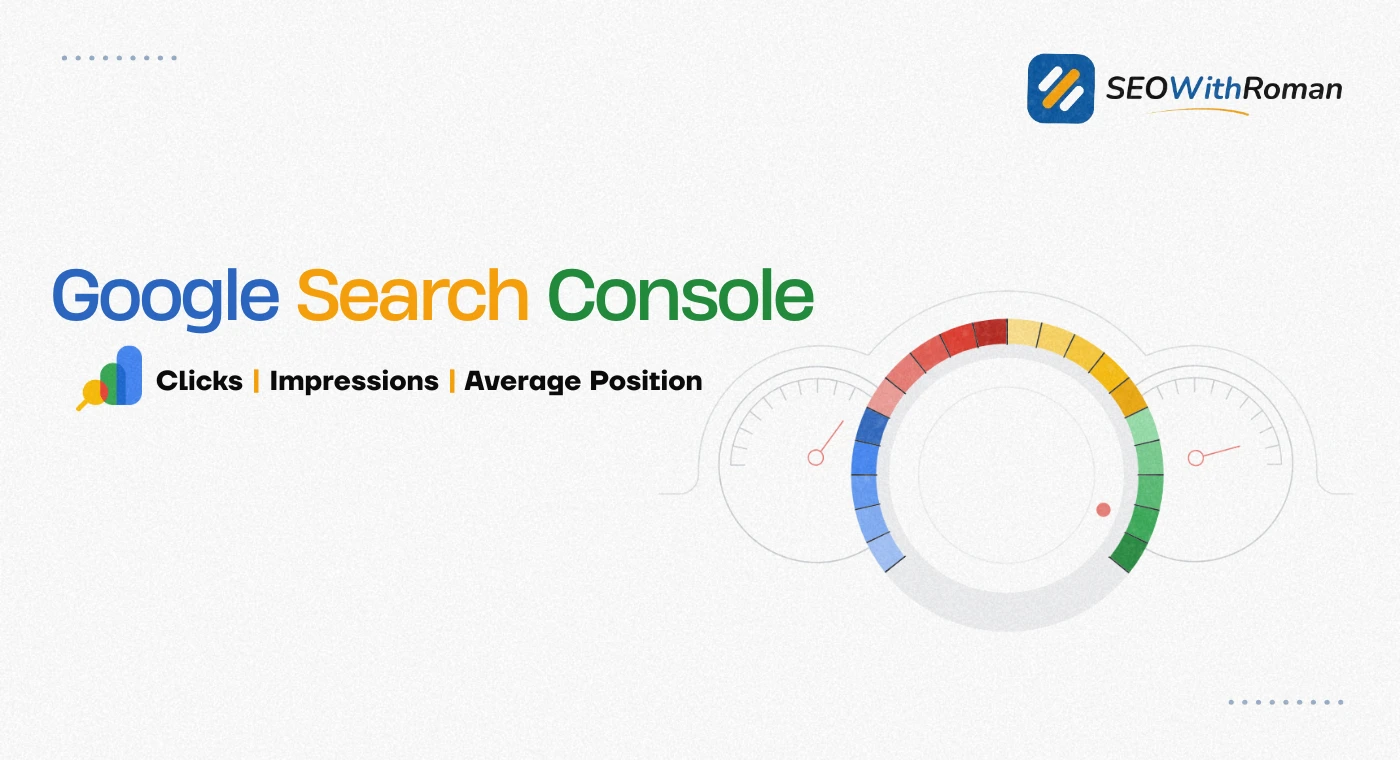
- Google Search Console is a free tool from Google that shows you exactly how your website performs in Google Search
- It was previously called Google Webmaster Tools before being renamed in 2015
- GSC shows you clicks, impressions, average position, crawl errors, indexing status, Core Web Vitals, and backlinks all in one place
- Every website owner should set up Google Search Console before publishing their first page, not after
- GSC data comes directly from Google, making it the most accurate SEO data source available for your own website
1 What Is Google Search Console and Why Every Website Needs It
Most small business owners and bloggers set up a website, publish content, and then wonder why Google is not sending them any traffic. The answer is almost always sitting inside a free tool they never opened.
Google Search Console, commonly called GSC, is a free web service provided by Google that lets you monitor, maintain, and troubleshoot your website's presence in Google Search results. It shows you exactly what Google sees when it crawls your site, which pages are indexed, which keywords are bringing people to your pages, and what technical problems are quietly blocking your rankings.
Before 2015 it was called Google Webmaster Tools. Google renamed it to Search Console to reflect its broader purpose beyond just technical webmaster tasks. Today it is the single most important free SEO tool available to any website owner, and it requires zero technical knowledge to start using.
Here is the most important thing to understand about GSC. Unlike third party tools that estimate your data, Google Search Console pulls information directly from Google's own systems. When GSC says your page ranks in position 7 for a keyword, that is not an estimate. That is the actual data Google recorded from real searches.
In six years of doing SEO for clients across multiple industries, I have never worked on a website without Google Search Console connected from day one. Not once. It is the foundation everything else is built on.
2 Google Search Console vs Google Analytics | Understanding the Difference
This is the question I get asked most often by beginners, and it is a genuinely important one because both tools look similar on the surface but serve completely different purposes.
| Feature | Google Search Console | Google Analytics 4 |
|---|---|---|
| Primary purpose | Monitor Google Search performance and technical health | Track all website traffic and user behaviour |
| Data source | Google Search index directly | JavaScript tracking tag on your website |
| Traffic covered | Google Search organic results only | All sources including social, email, direct, paid |
| Keyword data | Full keyword data for your own site | Limited keyword data (mostly not provided) |
| Indexing data | Full crawl and indexing reports | No indexing data |
| Core Web Vitals | Real user data from Chrome | Lab data only via PageSpeed integration |
| Backlink data | Basic backlink overview | No backlink data |
| Best used for | SEO diagnosis and search performance | Conversion tracking and audience behaviour |
| Cost | Completely free | Completely free |
The practical answer is this. You need both tools and they work together. GSC tells you how Google finds and ranks your pages. GA4 tells you what people do after they arrive. Connect them both from day one and you have a complete picture of your website's performance.
3 How to Set Up Google Search Console Step by Step
Setting up Google Search Console takes less than ten minutes. Here is the exact process I follow for every new client website:
Step 1: Go to search.google.com/search-console
Sign in with the Google account you want to use for your website management. If you use Gmail for your business, use that same account.
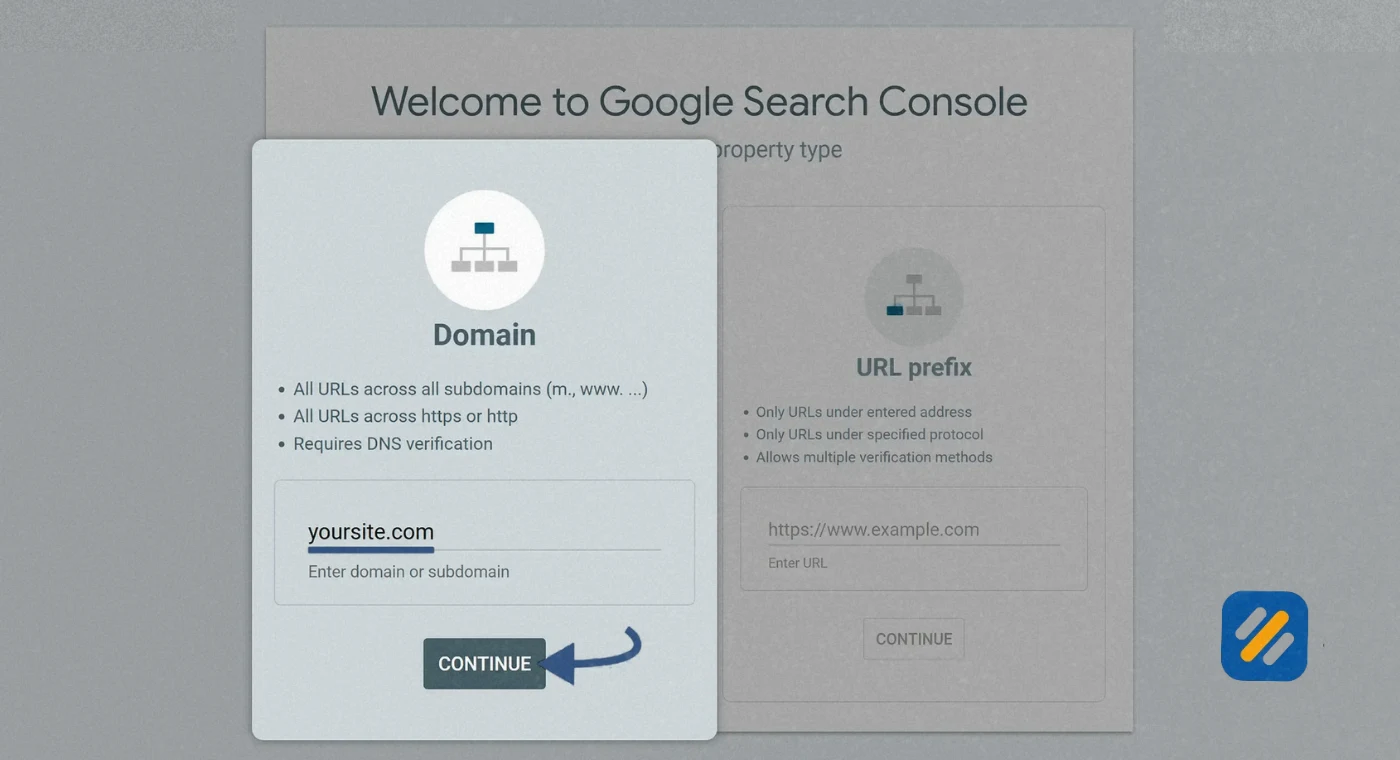
Step 2: Add a Property
A property is Google's term for the website you want to monitor. You will see two options:
Domain property is the recommended choice for most websites. It covers all versions of your domain including http, https, www, and non-www under one single property. This gives you the most complete view of your entire website. To verify a domain property, you need to add a TXT record to your domain's DNS settings through your domain registrar such as Namecheap or GoDaddy.
URL prefix property covers only the specific URL you enter, including the exact protocol. This is useful if you only want to monitor a specific subfolder like yoursite.com/blog/ separately from the rest of your domain.
For SEOWithRoman.com and most small business websites, always choose the Domain property.
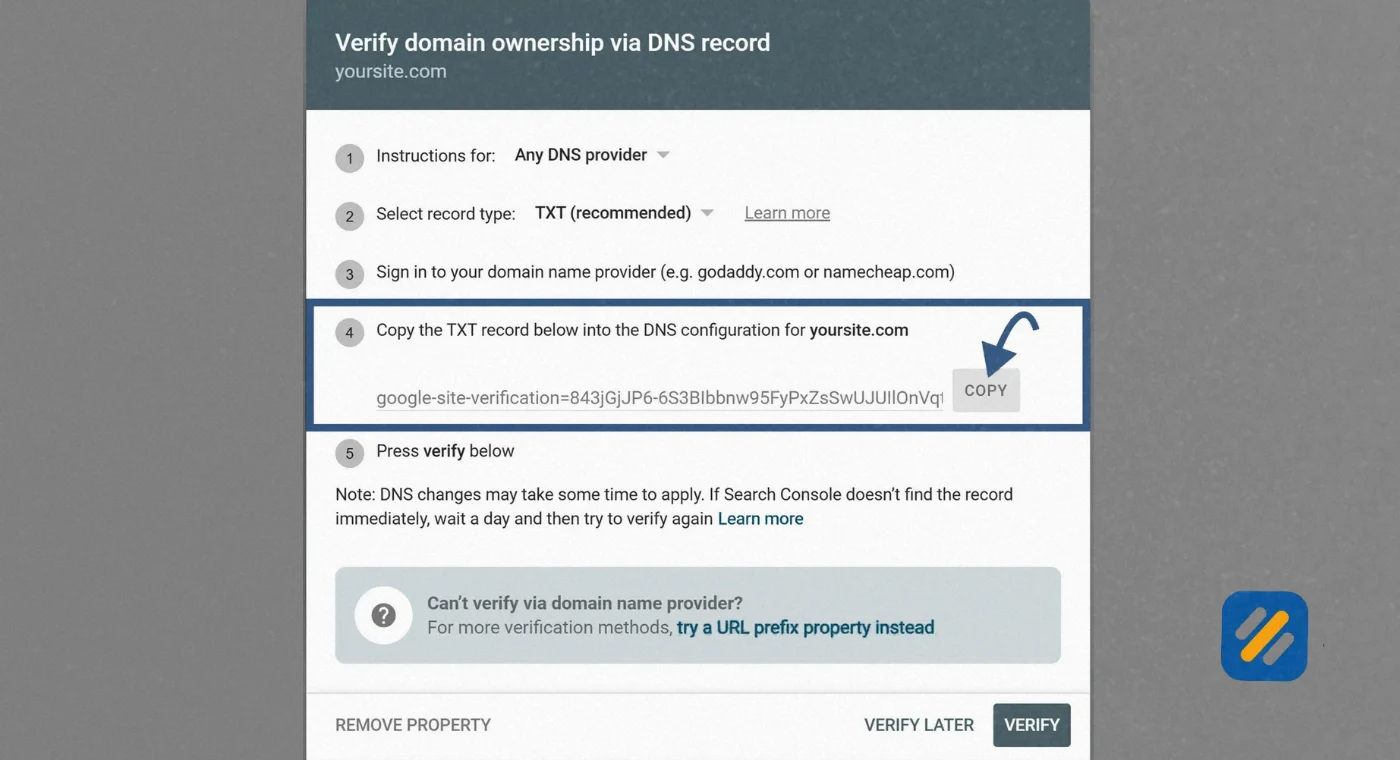
Step 3: Verify Ownership
For a domain property on Namecheap, the verification process works like this. Google provides a TXT record. You copy that record, log into your Namecheap account, go to Domain List, click Manage on your domain, open the Advanced DNS tab, add a new TXT record with the host set to @ and the value set to the TXT record Google provided, save it, then return to GSC and click Verify. DNS changes can take up to 48 hours to propagate but usually complete within an hour.
For WordPress websites, the easiest verification method is using the Rank Math SEO plugin. Under Rank Math then General Settings then Webmaster Tools, paste your Google Search Console verification code and save. Rank Math handles the rest automatically.
Step 4: Submit Your Sitemap
Once verified, go to Sitemaps in the left sidebar. If you are using Rank Math, your sitemap URL is yourwebsite.com/sitemap_index.xml. Enter this URL and click Submit. Google will use your sitemap to discover and crawl all your pages more efficiently.
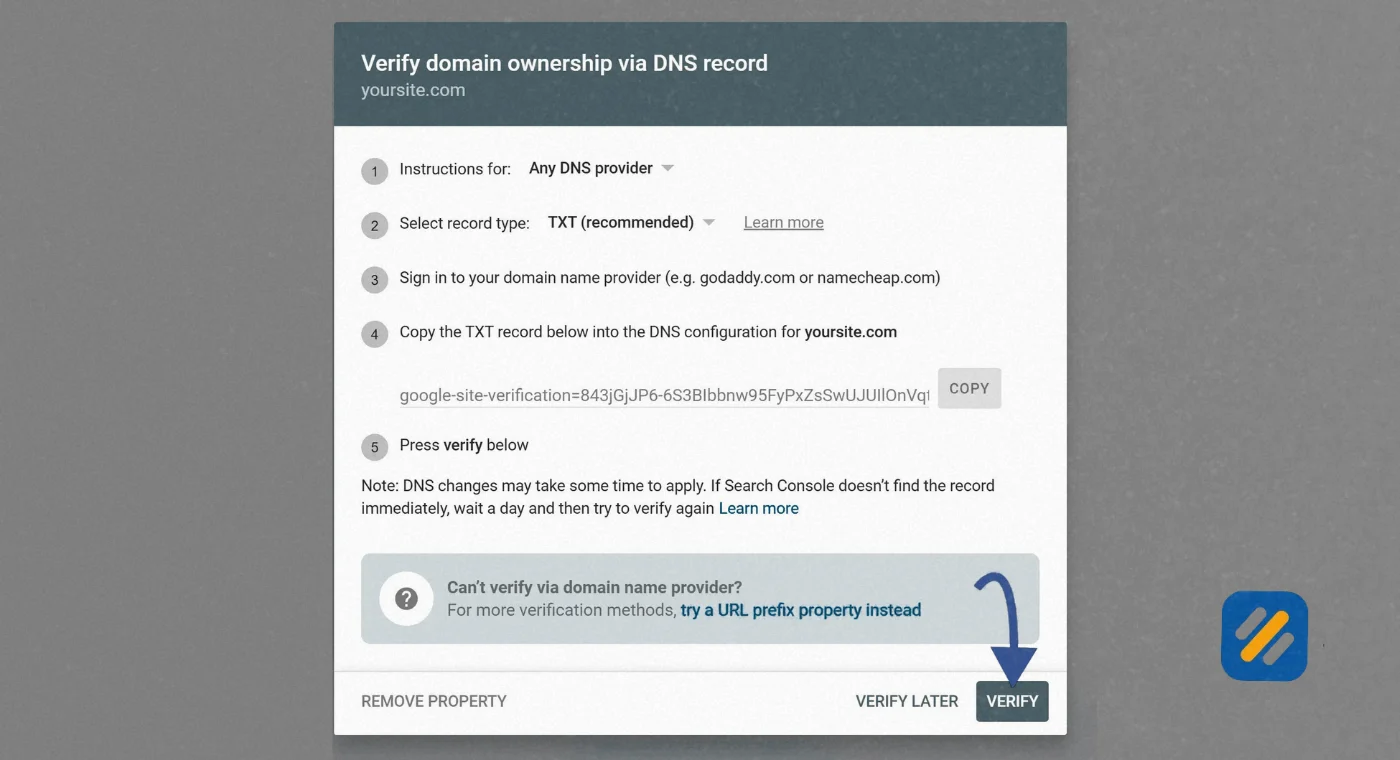
Step 5: Wait 48 to 72 Hours
GSC needs time to start collecting data after verification. The Performance report typically shows data within 2 to 3 days. Some reports like Core Web Vitals require 28 days of data before they become meaningful.
4 Every Google Search Console Report Explained
This is the section most GSC guides skip over or oversimplify. Here is what every report actually shows you and what to do with the data.
Performance Report
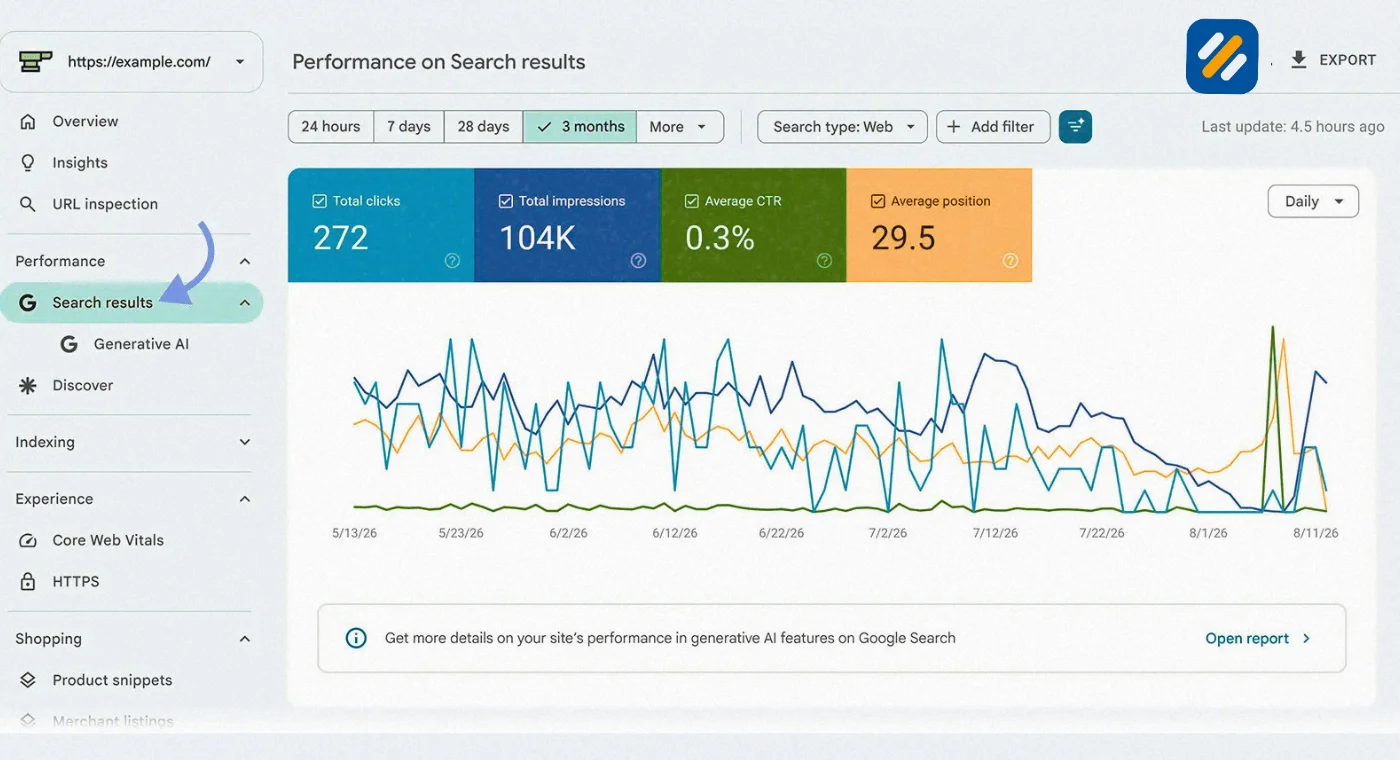
The Performance report is where you spend most of your time in GSC. It shows four core metrics for your website across all Google Search results:
Total Clicks is the number of times someone clicked your result in Google and landed on your website. This is your actual organic search traffic from Google.
Total Impressions is how many times your pages appeared in Google search results, regardless of whether anyone clicked. A page can have 10,000 impressions and zero clicks if it ranks on page five where nobody scrolls.
Average CTR is the percentage of impressions that resulted in a click. A page ranking in position one typically achieves a CTR between 25% and 35%. A page ranking in position five typically achieves 5% to 8%. If your CTR is significantly lower than these benchmarks, your title tag and meta description need improving.
Average Position is your average ranking across all the searches where your pages appeared. Position 1 is the top result. Position 11 is the first result on page two.
Below the main chart, the report breaks down data by Queries, Pages, Countries, Devices, and Search Appearance. The Queries tab is where you find every keyword driving impressions and clicks to your website. This is pure gold for content strategy.
URL Inspection Tool
The URL Inspection tool lets you check the status of any individual page on your website. Enter any URL from your site and GSC shows you whether that page is indexed, when Google last crawled it, what structured data it detected, and whether there are any issues preventing it from ranking.
If you have just published a new article and want Google to find it faster, use the URL Inspection tool, paste your new article URL, and click Request Indexing. This does not guarantee immediate indexing but it puts your URL in the priority crawl queue.
Pages Report (Indexing)
The Pages report under Indexing is where you find out which of your pages Google has indexed and which ones it has not. This is critical because a page that is not indexed cannot rank for anything.
The report shows a count of indexed pages and a separate list of reasons why other pages are not indexed. Common reasons include 404 errors, pages blocked by robots.txt, soft 404 errors, and pages marked as noindex.
Sitemaps Report
The Sitemaps report shows all the sitemaps you have submitted and their status. A status of Success means Google processed your sitemap without errors. A status of Has Errors means Google found problems in the sitemap file that need to be fixed.
Core Web Vitals Report
The Core Web Vitals report shows how your pages perform on Google's three user experience metrics. These metrics are real ranking factors and poor scores can suppress your rankings even when your content is excellent.
The three metrics are Largest Contentful Paint which measures loading speed, Interaction to Next Paint which measures how quickly your page responds to user clicks, and Cumulative Layout Shift which measures visual stability as the page loads.
Pages are grouped into Good, Needs Improvement, and Poor. Any page in the Poor category should be prioritised for technical fixes.
Manual Actions Report
The Manual Actions report shows whether any human reviewer at Google has applied a penalty to your website for violating Google's spam policies. Most websites will never see a manual action. But if you do, your rankings are directly suppressed until the issue is resolved and the penalty is removed.
Check this report when you notice an unexplained sudden drop in traffic. A manual action is one of the few things in SEO that causes traffic to fall off a cliff overnight.
Links Report
The Links report shows your external backlinks, which websites link to you most often, which anchor text they use, and your internal link structure. While GSC's backlink data is less comprehensive than dedicated tools like Ahrefs, it is entirely accurate because it comes directly from Google's index.
5 What Data Does Google Search Console Show
| Data Type | Where to Find It in GSC | What It Tells You | How Often to Check |
|---|---|---|---|
| Organic clicks and impressions | Performance then Search Results | How much traffic Google sends you | Weekly |
| Keyword rankings | Performance then Queries tab | Which keywords rank and at what position | Weekly |
| Click through rate by page | Performance then Pages tab | Which pages convert impressions to clicks | Monthly |
| Indexed vs non-indexed pages | Indexing then Pages | Whether Google can find all your content | Monthly |
| Crawl errors | Indexing then Pages then Not Indexed | What is blocking Google from your pages | Monthly |
| Core Web Vitals scores | Experience then Core Web Vitals | Page speed and user experience metrics | Monthly |
| Backlink overview | Links | Who links to your site and with what anchor text | Monthly |
| Manual penalties | Security and Manual Actions | Whether Google has penalised your site | Weekly |
| Sitemap status | Indexing then Sitemaps | Whether Google can read your sitemap | Monthly |
| Rich results eligibility | Enhancements | Whether your schema markup is working correctly | Monthly |
6 How to Use Google Search Console for SEO | 5 Practical Workflows
Knowing what every report shows is one thing. Knowing how to use them together to actually improve your rankings is another. Here are five workflows I use regularly on client websites.
Workflow 1: Find Keywords to Improve
Go to Performance then Queries. Filter for pages ranking between position 4 and 15. These are your striking distance keywords. Your page is already ranking but not quite on page one. Sort by impressions to find the highest-opportunity pages. Open those pages and improve them by adding more depth, better internal links, and an updated title tag. This is consistently the highest ROI activity in GSC.
Workflow 2: Fix Pages That Are Not Indexed
Go to Indexing then Pages. Look at the Not Indexed section and click each reason listed. For 404 errors, set up 301 redirects to the correct pages. For soft 404 errors, add real content to those pages or redirect them. For pages excluded by noindex tags that should be indexed, remove the noindex directive and request indexing through the URL Inspection tool.
Workflow 3: Identify Low CTR Pages
Go to Performance then Pages. Sort by CTR from lowest to highest. Find pages with more than 500 impressions but a CTR below 3%. These pages are ranking but nobody is clicking. Rewrite the title tag and meta description for those specific pages to be more compelling and benefit focused. Check the results four weeks later.
Workflow 4: Monitor Core Web Vitals
Go to Experience then Core Web Vitals. Look at the mobile report first since Google uses mobile-first indexing. Identify any pages in the Poor category for LCP or CLS. On WordPress, installing WP Rocket and optimising images with Smush typically fixes the majority of LCP issues. Use PageSpeed Insights to get specific recommendations for each page.
Workflow 5: Check New Articles After Publishing
Every time you publish a new article, go to URL Inspection and paste the new article URL. Click Request Indexing. Check back 48 hours later to confirm the page is indexed. If it is still not indexed after five days, investigate whether your robots.txt file is blocking it or whether there are crawl errors showing in the Pages report.
7 Google Search Console Benefits | Why It Is the Most Valuable Free SEO Tool Available
There are dozens of SEO tools available in 2026, many of them excellent. But Google Search Console has advantages that no paid tool can replicate.
The data comes directly from Google. Third party tools estimate your rankings and traffic based on their own databases. GSC shows you the actual numbers Google recorded from real searches. When GSC says your page had 847 impressions yesterday, that is not an estimate.
It shows you problems before they affect traffic. The indexing reports, manual actions alert, and Core Web Vitals report all surface issues that could suppress your rankings before they show up as traffic drops. With regular GSC monitoring, you catch problems in days rather than discovering them weeks later when rankings have already fallen.
It is completely free with no usage limits. Unlike paid tools that charge monthly subscriptions, GSC is free forever for any website. The data it provides would cost hundreds of dollars per month through third party platforms.
It covers your entire website. Some free tools limit how many pages they can analyse. GSC covers every single page on your website regardless of how large your site is.
It integrates with Google Analytics 4 and Google Ads. Connecting GSC to GA4 lets you see both search performance and on-site behaviour in one place. Connecting to Google Ads lets you align your paid and organic keyword strategies.
8 How to Use Google Search Console to Improve SEO: Advanced Strategies
Once you understand the basics, GSC becomes a much more powerful tool when you use it strategically.
Strategy 1: Compare Date Ranges to Spot Traffic Drops
In the Performance report, click the date range selector and choose Compare. Select the current period against the same period last year. Any page showing a significant drop in clicks or impressions year over year needs attention. This comparison surfaces content decay, where pages that used to rank well have lost positions as competitors published better content.
Strategy 2: Use the Search Appearance Filter
In the Performance report, click Search type and select the Search Appearance tab. This shows you which rich result types your pages appear in, including sitelinks, FAQ results, and image results. If a page is eligible for a rich result type that it is not currently appearing in, check your schema markup in the Enhancements section.
Strategy 3: Check Country Performance
In the Performance report, click the Countries tab. For SEOWithRoman.com which targets US and UK audiences, this report immediately shows whether your content is resonating in those specific markets. If you are getting significant impressions from countries you did not target, it may indicate your keyword strategy needs tightening.
Strategy 4: Monitor Device Split
Click the Devices tab in the Performance report. Compare clicks and average position across desktop, mobile, and tablet. If your mobile average position is significantly lower than desktop, it points to a mobile usability or Core Web Vitals issue specific to mobile rendering.
9 3 Expert Tips to Get More From Google Search Console
Tip 1: Set Up Email Alerts for Critical Issues
GSC can send you email notifications when it detects significant issues including manual actions, security problems, and large drops in indexed pages. Go to Settings then Preferences and enable email notifications. This ensures you are notified within 24 hours of a serious problem rather than discovering it weeks later during a routine check.
Tip 2: Use the Performance Report as a Free Keyword Research Tool
Most beginners use keyword research tools to find new topics to write about. But the Queries tab in GSC shows you keywords you are already ranking for that you never specifically targeted. These accidental rankings are opportunities. If your page ranks in position 14 for a keyword you never optimised for, you can update that page to explicitly target that keyword and move from position 14 to position 4 without writing a new article.
Tip 3: Check GSC Before Changing Anything Major on Your Site
Before you change your URL structure, update your permalink settings, switch themes, or migrate to a new host, take a screenshot or export of your current GSC Performance data. Post-migration, compare GSC data from before and after to immediately identify which pages lost rankings during the change. Without a GSC baseline, diagnosing post-migration traffic drops becomes extremely difficult.
10 Conclusion
Google Search Console is not optional. It is the one tool that connects your website directly to the search engine that sends you traffic. Everything else in SEO, whether keyword research, content writing, or link building, is ultimately measured by what you see in GSC.
Set it up today if you have not already. Verify your domain property. Submit your sitemap. Connect it to Google Analytics 4. Then check the Performance report and Pages report every week.
The websites that grow consistently on Google are not the ones with the biggest budgets. They are the ones that pay attention to their data and act on what it tells them. GSC gives you that data for free, directly from Google, with no guesswork.
Have a question about setting up or using Google Search Console? Leave a comment below and I will walk you through it personally.
Join 1,000+ business owners and bloggers who get one actionable SEO tip every week — straight to their inbox. Free forever.
Get Free Weekly Tips →